
How to remove C2PA Content Credentials from a photo, a video or a PDF
Content Credentials can be removed from a photo or a video in three clicks, for free, without changing a single pixel. What comes off is a label: the file’s own account of who made it and how, written to the C2PA standard. The image, the ordinary metadata and every forensic trace stay exactly where they were. This guide shows how to remove C2PA Content Credentials step by step and then shows what you are left with.
To do it we use GoTamper.it, a complete, free and public tool for modifying any kind of file (photos, videos, screenshots, PDFs, audio) directly in the browser: nothing is uploaded and nothing is stored.
This guide is part of a series that starts with how to tell if an image is AI generated.
Remove C2PA Content Credentials from a photo
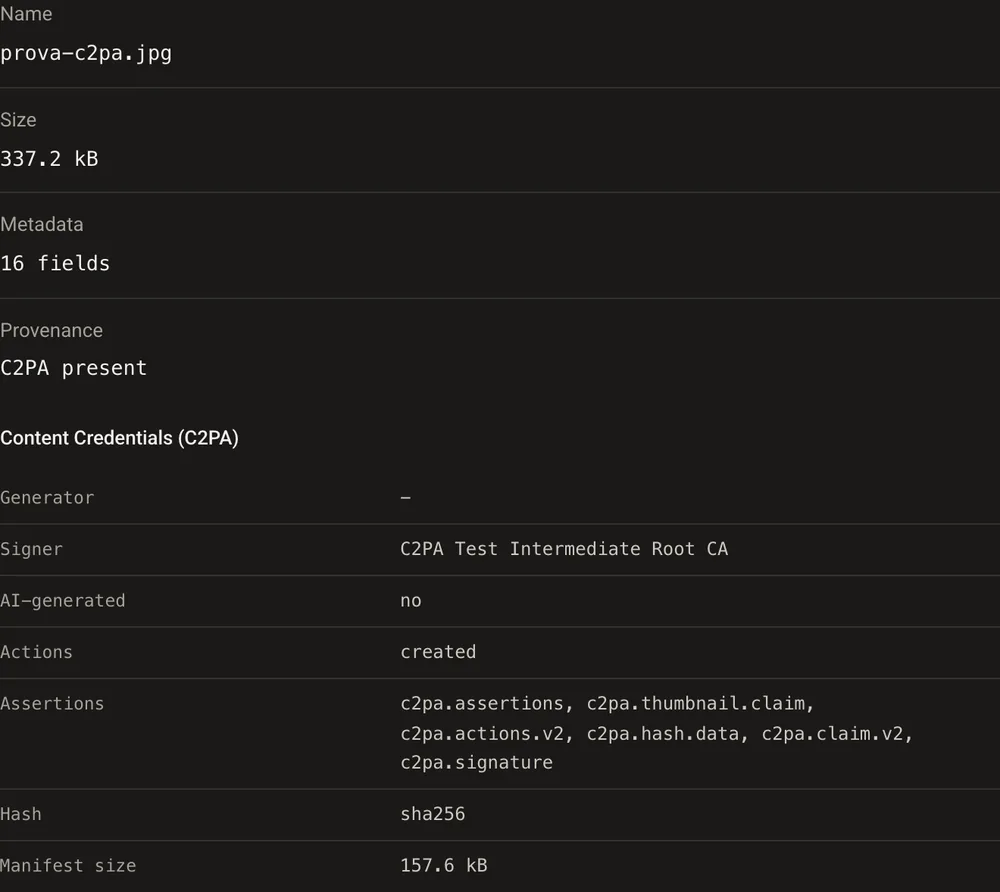
Step 1: load the photo
Drag the photo onto GoTamper.it. The page shows what the file declares about itself: who signed it, what was done to it, and how big the Content Credentials are. Our test photo carries 157.6 kB of them, plus 16 ordinary metadata fields such as camera, date and colour profile.

Step 2: open the Provenance tab
This tab only shows up when the file has Content Credentials. The box Remove C2PA / Content Credentials is already ticked. Leave it as it is.
Step 3: decide what happens to the other metadata
In the Metadata tab choose Keep if you only want the Content Credentials gone, or Erase all if camera, date and location should go too. We chose Keep, to show that the two things are separate.
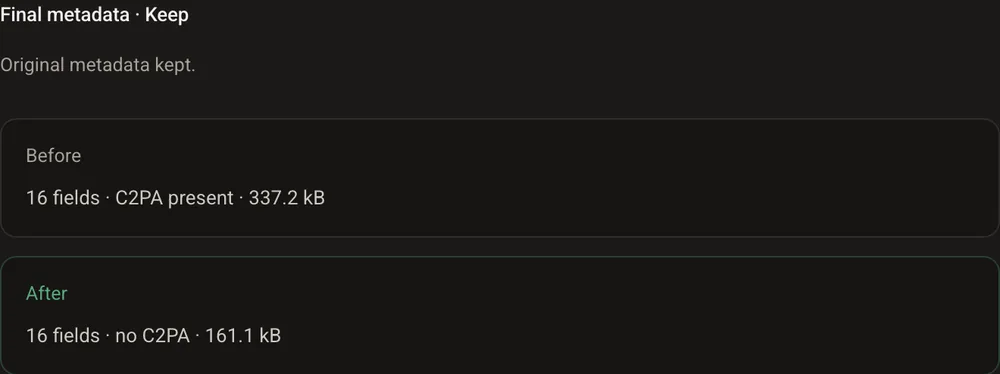
Step 4: download the result
Open Result. Before: 16 fields, C2PA present, 337.2 kB. After: 16 fields, no C2PA, 161.1 kB. The difference is the Content Credentials, thumbnail and signature included. The pixels have not been touched. Download the file and you are done.
Remove C2PA Content Credentials from a video
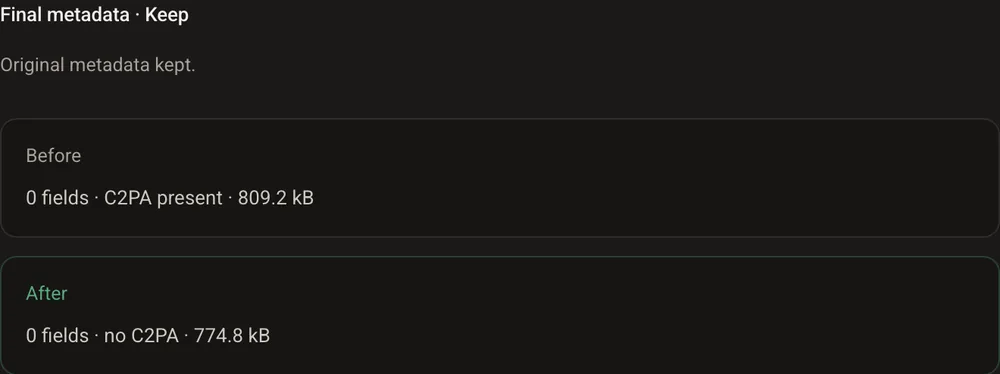
Same steps, one tab fewer. With a video GoTamper.it shows only Upload, Metadata and Result, and the removal happens on its own. Our test video, 809.2 kB, came out at 774.8 kB with no C2PA.
The video is not re-encoded: same frames, same audio, same quality. Only the block that held the Content Credentials is gone.
Remove C2PA Content Credentials from a PDF
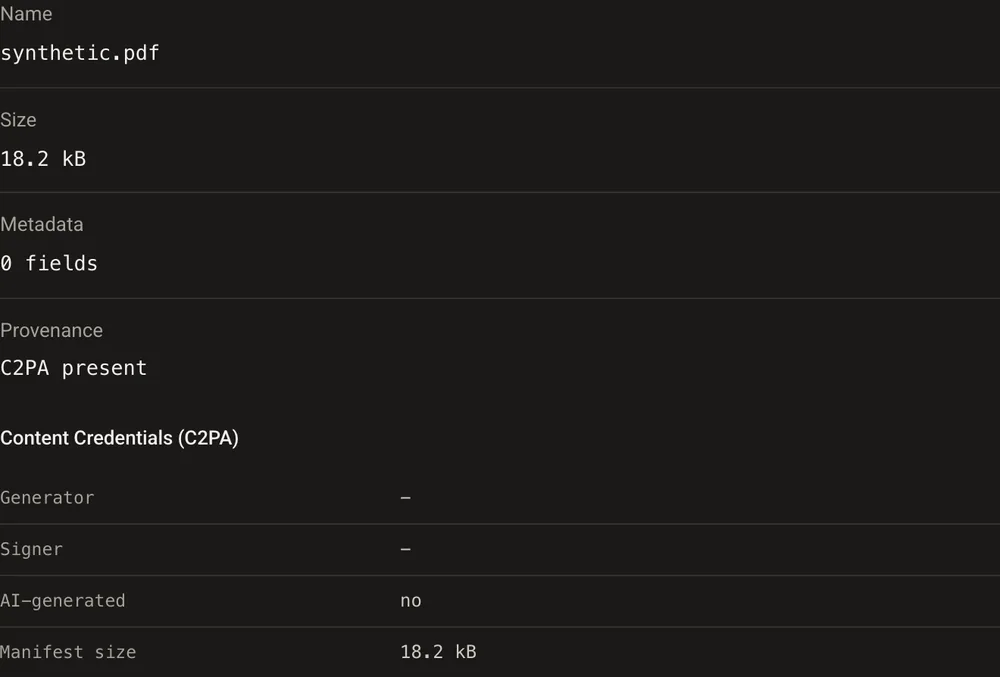
In a PDF the Content Credentials travel as a small file attached to the document. GoTamper.it finds the attachment, and the steps are the same as for a photo: load the PDF, leave the Provenance box ticked, decide what to do with title, author and dates in the Metadata tab, open Result and download. The result panel goes from C2PA present to no C2PA: the document no longer lists the attachment and its contents are blanked.
One thing to know about PDFs: they save changes by adding a new version at the end of the file, and the old one stays inside. The declaration is gone from the document, but a forensic reader that walks through the older version can still see that something was there. To make that disappear too you have to rebuild the whole document, which is a different job and leaves traces of its own.
Check that it worked
Open the new file in the C2PA viewer. If it finds nothing, the Content Credentials are gone. The viewer reads what the file declares; it does not detect AI and it says nothing about what the picture shows.
One warning. Some “metadata cleaners” empty the camera and date fields but leave the Content Credentials in place, because they do not treat them as metadata. Trust the viewer, not the empty panel.
What the command line shows
The same check, for those who prefer a terminal. Before, c2patool finds the Content Credentials and prints who signed them and what they declare:
$ c2patool photo.jpg
"active_manifest": "urn:c2pa:070795be-3295-4337-ad8b-f378b8f5529f",
"claim_generator_info": [{ "name": "TrueScreen test", "version": "1.0" }],
"assertions": [{ "label": "c2pa.actions.v2", "data": { "actions": [{ "action": "c2pa.created" }] } }],
"signature_info": { "alg": "Es256", "issuer": "C2PA Test Signing Cert" }
After, the same command finds nothing, while ExifTool confirms that the ordinary metadata survived:
$ c2patool photo-stripped.jpg
Error: No claim found

$ exiftool -JUMBF:all -Software photo-stripped.jpg
Software : Adobe Photoshop 21.1 (Macintosh)

$ ls -l photo.jpg photo-stripped.jpg
345320  photo.jpg
164954  photo-stripped.jpg
The 180,366 bytes that went missing are the Content Credentials block, thumbnail included. Everything else is byte for byte the same.
What you have really changed
Less than it looks. Removing C2PA metadata touches one block of the file and nothing else. After the removal:
- the pixels or the frames are exactly as before;
- camera, date and location are still there, if you chose Keep;
- invisible watermarks written in the pixels, such as SynthID, are untouched: GoTamper.it says so itself;
- the traces a forensic analysis reads, from the compression pattern to the marks left by AI generators, are untouched;
- the copy of the Content Credentials that some software keeps online is untouched.
A file without Content Credentials says less; it does not lie. And it is not suspicious just because it has none: most files in circulation never had them.
Why this changes nothing for certified evidence
Content Credentials travel inside the file, so they disappear with the file. A TrueScreen certification lives outside it. When a photo or a video is taken with the TrueScreen App, when a web page is acquired with Forensic Browser or the Chrome and Edge extension, or when a document goes through digital notarisation in Portal, TrueScreen records the file’s fingerprint together with a qualified electronic seal and a qualified timestamp, recognised internationally, in a report that anyone can verify.
Strip the file all you like: a modified copy will no longer match the fingerprint in the report, and the original record is still there. C2PA is included, but TrueScreen offers a complete forensic guarantee that goes beyond metadata labeling. How to certify a file shows the steps.

Frequently asked questions about removing C2PA Content Credentials
Is GoTamper.it a C2PA remover?
It is a general tool for modifying files, and removing C2PA Content Credentials is one of the things it does, for free and in the browser. It handles photos, videos, PDFs and audio in the same way, as shown above.
Does a file without Content Credentials mean it is fake or AI generated?
No. Most files in circulation never had Content Credentials, and many platforms strip metadata on upload. A file without them says less; it does not lie. To know what a file actually proves you need evidence that lives outside the file.
Does removing Content Credentials also remove the “AI” label on social platforms?
The label appears when a platform finds Content Credentials, so without them there is nothing to show. That does not make the content any less generated: watermarks written in the pixels, such as SynthID, stay where they are, and GoTamper.it does not touch them.
Can Content Credentials be added back later?
Yes, with the right software, but the new record will be signed by whoever adds it, not by the original author, and a viewer will say so. A signature cannot be copied from one file to another: any change to the file breaks it.
The proof, outside the file
With TrueScreen the file’s fingerprint, the qualified timestamp and the qualified electronic seal sit in a report anyone can verify: whatever happens to the file’s container, the certification stands.

TrueScreen editorial team
Published on · Updated on
This section is edited by the TrueScreen editorial team, which brings together expertise in digital forensics, the law of digital evidence and regulatory compliance. Every article is checked against primary sources: legislation, published rulings, technical standards and official documentation, always cited in the text.
Editorial Team and Methodology →


